
Step 4 — Sending a Document for Signature
⏱️ Takes about a minute · ✍️ This is the main thing you'll do
Once your Adobe Sign account is connected and your board is set up, you can send any document for signature — right from an item.
✅ Before you start
| You'll need |
|
|---|---|
| Adobe Sign connected | See Step 2 |
| Board set up | See Step 3 |
| An Adobe Sign template (or a file on your item) | Created in your Adobe Sign account |
✍️ Send in 4 steps
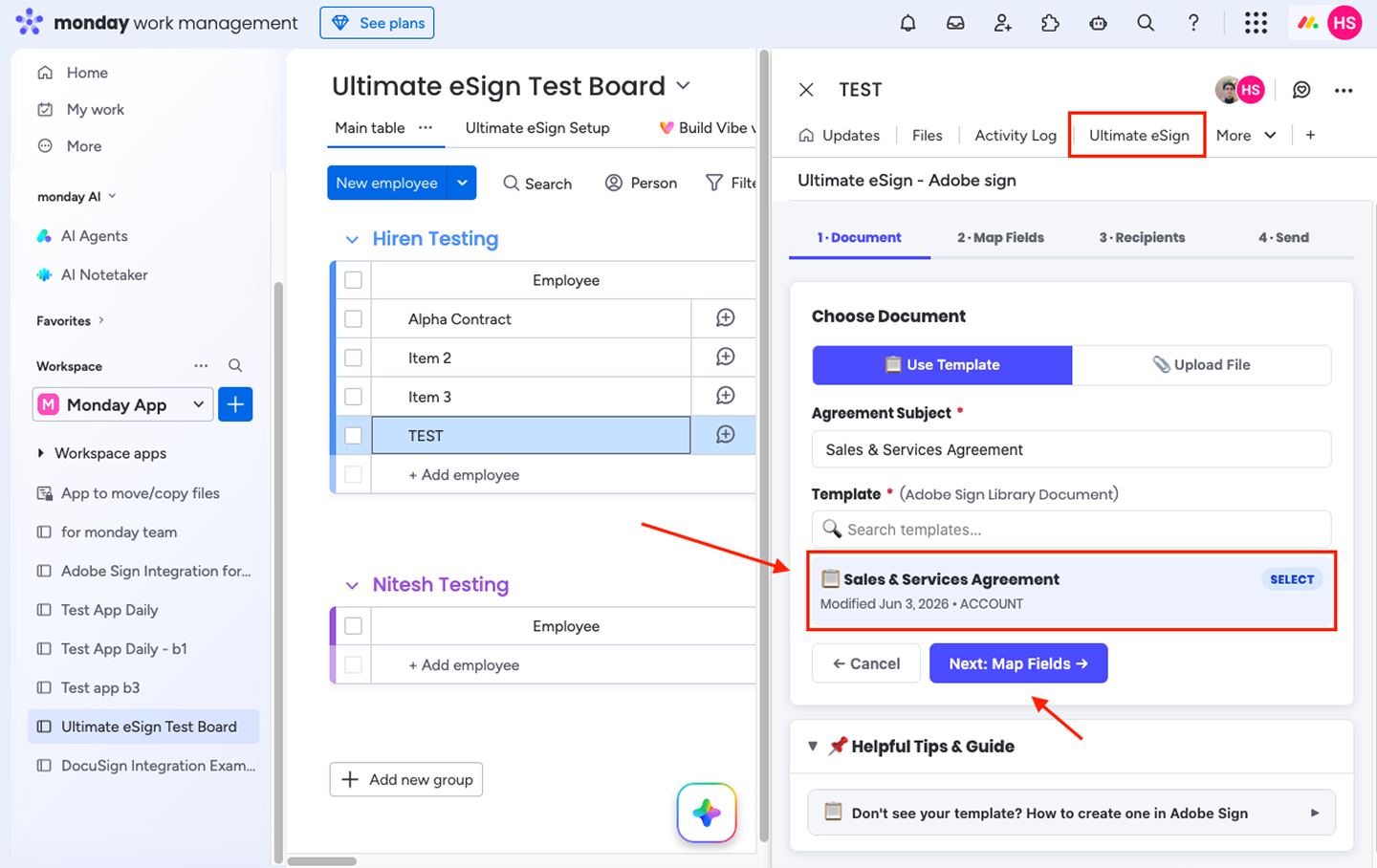
1️⃣ Document — choose what to send
Open the item, click the Ultimate eSign tab, and pick an Adobe Sign template from the list (or choose a file attached to your item).
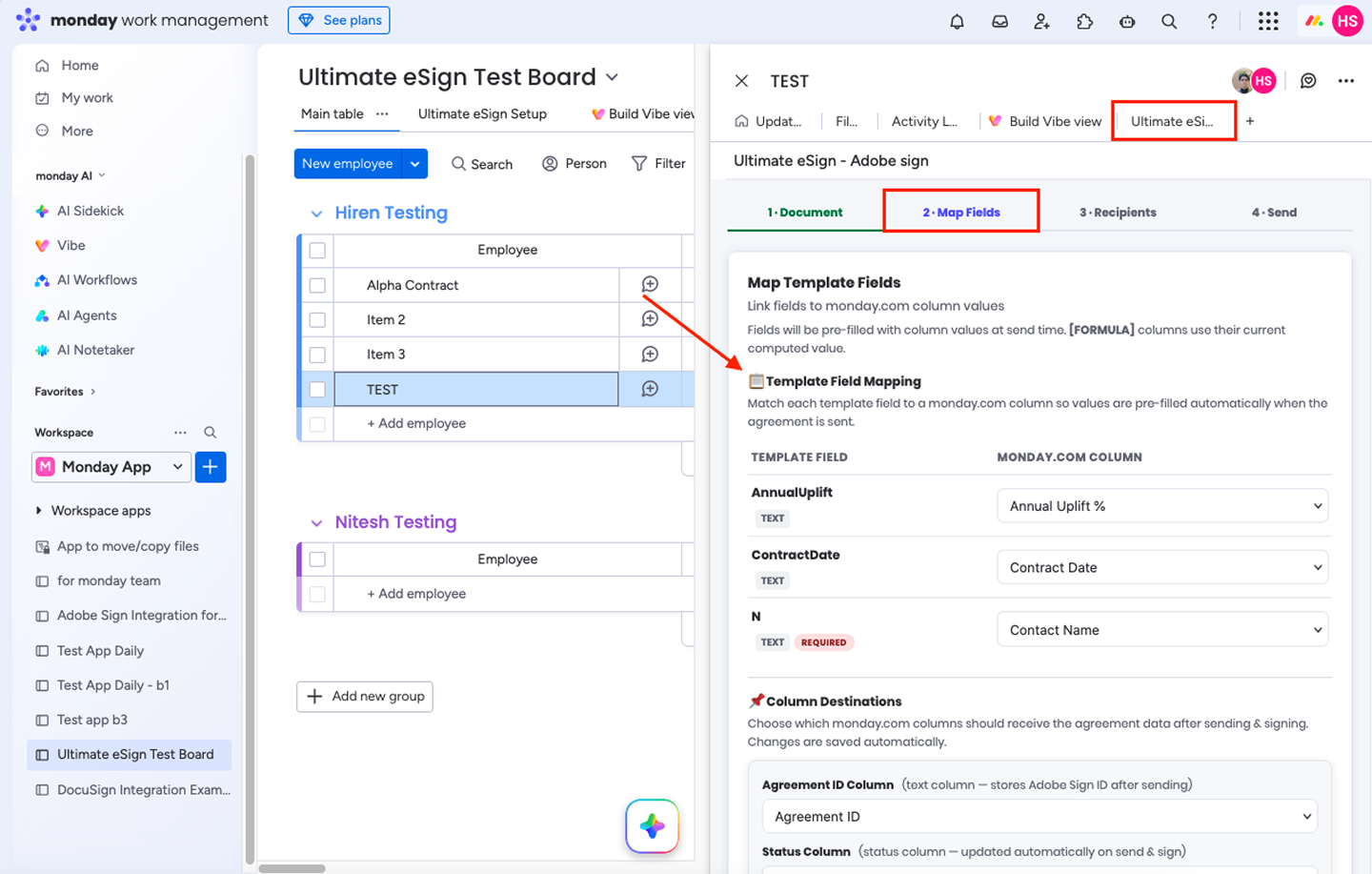
2️⃣ Map Fields — fill the document from your board
Match the document's fields to your board columns (e.g. Signer Name → Contact, Email → Email column). The app suggests matches automatically — just review and adjust if needed.
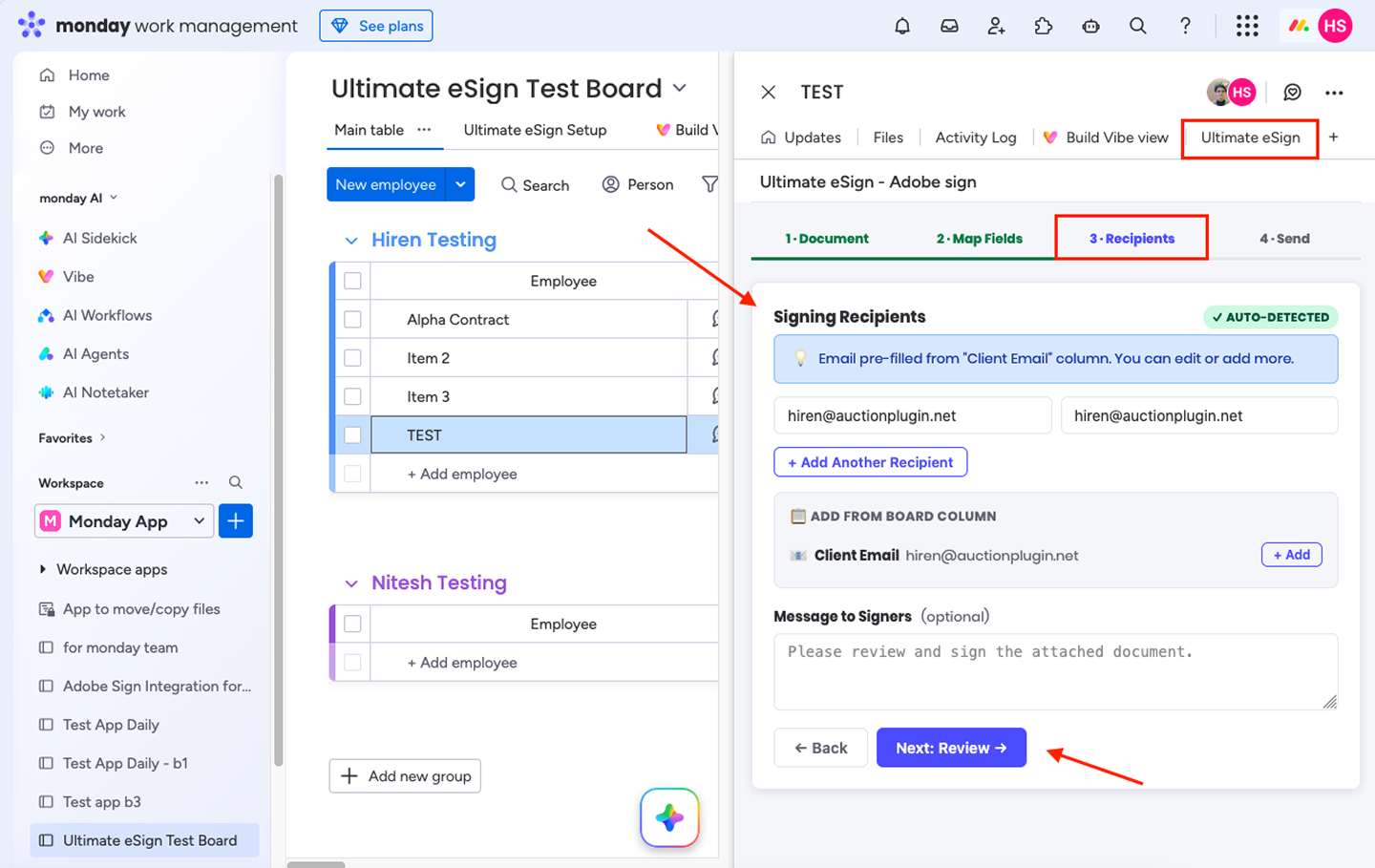
3️⃣ Recipients — confirm who signs
The signer's email is auto-filled from your board (from an Email column or a linked Contact). Check it, add more recipients if needed, and write an optional message to the signer.
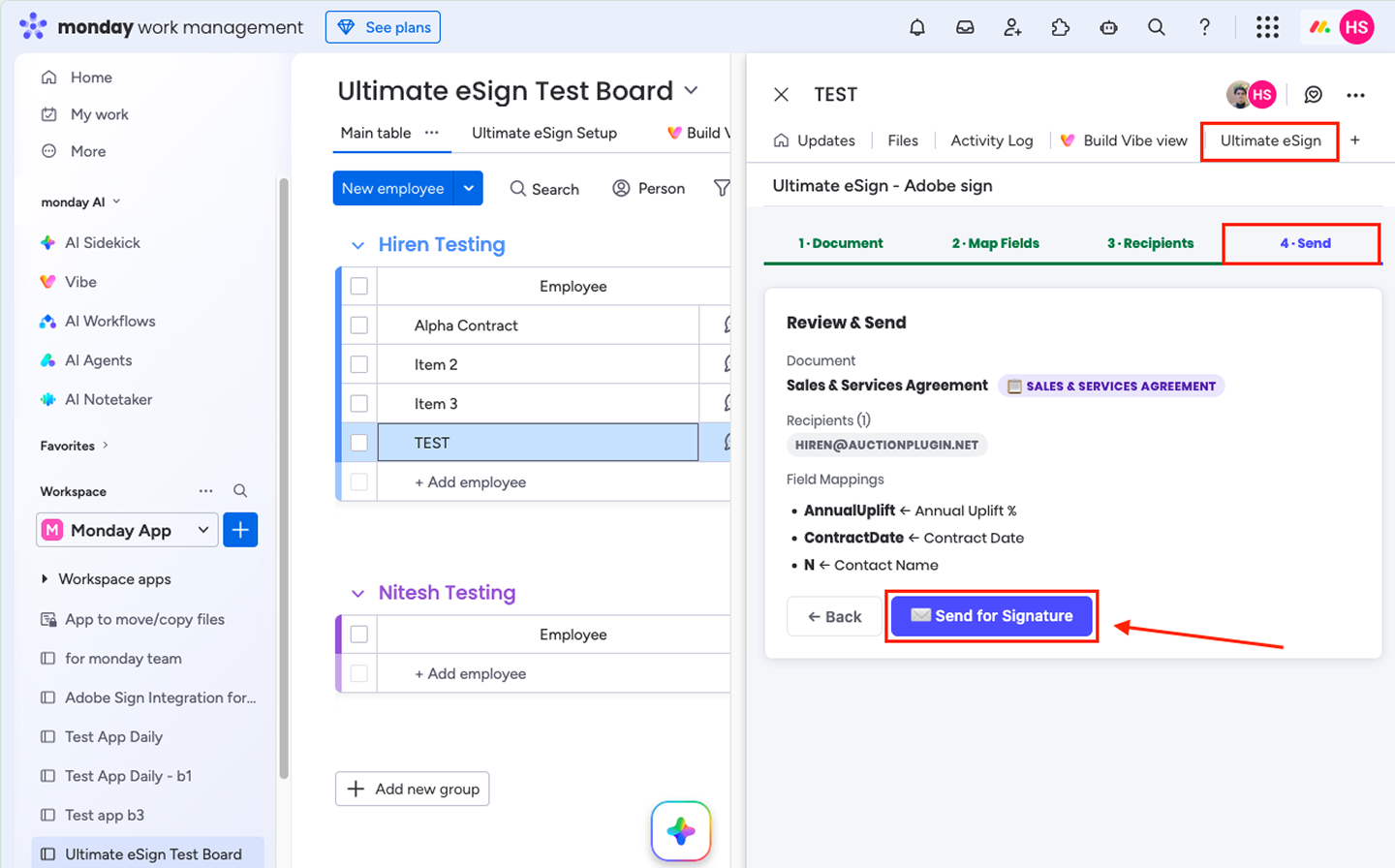
4️⃣ Send — review and send
Review the summary and click ✉️ Send for Signature.
✅ What happens next
- Your recipient receives an email from Adobe Sign to review and sign.
- Your board's status changes to "Sent for Signature" automatically.
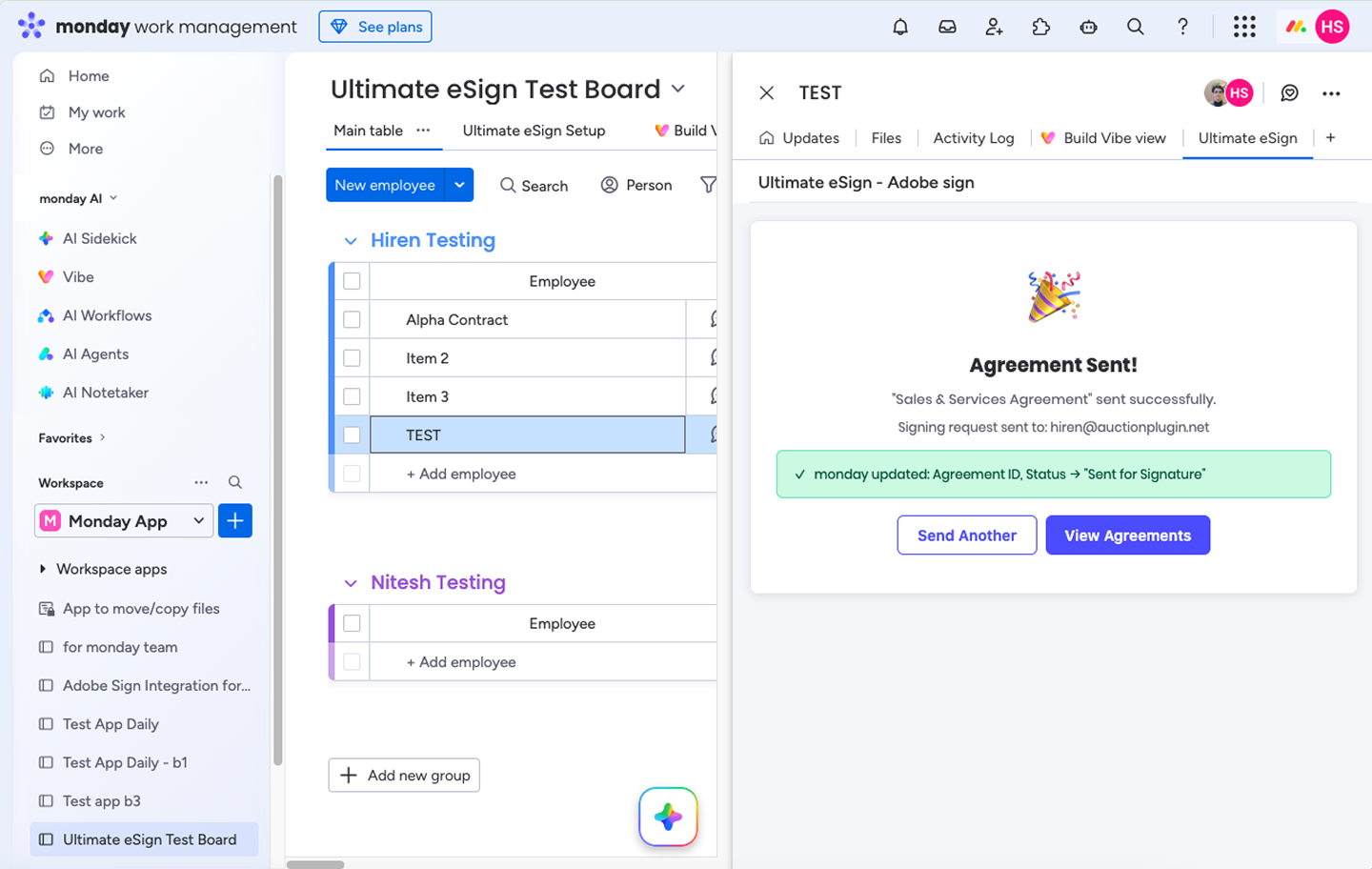
- When the recipient signs, the status updates to "Signed" and the signed PDF is saved to your Files column — automatically.
⏱️ How fast does the status update?
The status usually updates within a few seconds of signing. In some cases it can take up to a few minutes to sync — this is normal, so please allow a short wait before the Signed status and PDF appear. No action is needed on your side; it updates on its own.
📋 You can see every document sent from an item in the Sent Agreements list, and send a reminder to the signer from there.
💡 Tips
- Multiple signers? Add each recipient in the Recipients step — everyone gets their own signing email.
- Using CRM boards? The app can pull the signer's email from a linked Contact and company info from a mirror column.
- Send the same template often? Set up an automation so it sends automatically on a status change (see Step 6 — Automations).
🛠️ Troubleshooting
| Problem | Solution |
|---|---|
| Recipient email is blank | Add an Email column (or a linked Contact with an email) to your item |
| "Plan limit reached" | You've hit your document limit — upgrade your plan to continue |
| A required field is blocking send | Fill or map the required field, then send again |
| Template not in the list | Make sure it's created and active in your Adobe Sign account |